Monday, June 2, 2008

Microsoft Windows 7: What the Future Holds

Microsoft plans a completely
new GUI for versions of Windows 7 running on the kind of high-powered
computers that now run Vista. The same team that designed Office 2007
is in charge of this interface, and it's likely we'll see something
like the Office 2007 Ribbon in place of Windows' traditional menus and
toolbars. Unlike the Office Ribbon, however, the new UI—whatever it
finally looks like—will be something you can turn on or off, so
corporate users can maintain the same interface they've been using for
years, without expensive retraining.


Many clues to what the Windows 7 development team is thinking about
can be found in the Windows Feedback Button found in the early builds.
This Feedback tool invites developers to comment on the five "pillars"
on which Windows 7 will be built. Each is divided into a number of
scenarios that have only brief and vague descriptions. Here's a quick
description of the pillars, with some guesses at what the associated
scenarios might portend for Windows 7. The fullest analysis we've seen
of these pillars is a long posting by "Bryant" at AeroXperience (www.aeroxp.org).


The first pillar is "Specialized for Laptops." Scenarios associated
with it include data security, speed, wireless improvements,
synchronization, and power management. One scenario is called "Touch
and Tablet Usability," which may have something to do with the rumors
that Microsoft, having been stung by the touch-screen keyboard in
Apple's iPhone, is planning something even better for Windows. Indeed,
Microsoft recently announced plans to integrate multi-touch technology
in Windows 7, making user input possible by touching and gesturing your
fingertip around the screen—a way of one-upping the iPhone interface
while covering your monitor with greasy fingerprints.


The second pillar is "Designed for Services." This includes the Live
Mesh–type experience that I described earlier, plus promised
improvements to system upgrades from Vista to Windows 7—the kind of
upgrade that has never been a Windows strong point. This category also
includes "The Family Friendly Web Experience," which presumably means
some form of site filtering, perhaps integrated into Live Mesh.


The third pillar is "Personalized Computing for Everyone," a
category that includes customizable desktops and a vaguely defined
scenario in which the desktop can link to local culture—presumably
meaning that the desktop will make use of local music and images. This
pillar also includes the ability to access your files from anywhere (as
in Apple's Back to My Mac feature), and secure roaming, apparently a
scheme to let you access your bookmarks and passwords from anywhere—a
convenience that also sounds like a potential security nightmare.


"Optimized for Entertainment," the fourth pillar, promises
home-media streaming, better high-DPI graphics than in Vista, and a new
version of Windows Media Center codenamed "Fiji," already in a late
stage of development. Fiji will be built into Vista-based Media Center
PCs later this year, but an improved version will clearly go into
Windows 7. New Fiji features include QAM support (so digital cable TV
signals can flow into a PC without a set-top box) plus support for
DirectTV tuners and better guides to available HD programming.


The fifth and last pillar is "Engineered for Ease of Ownership,"
which includes improved installation time (10 minutes is one figure
being bandied about), and lots of promises about "just works"
functionality and similar conveniences that Microsoft has been
promising, not very convincingly, since the Windows 95 era.—next: Virtual Environments >

Hutchison names new chief financial officer

NEW YORK (Associated Press) - Hutchison Telecommunications
International Ltd., a provider of mobile and fixed-line
telecommunication services in Asia and Africa, on Friday named Chris
Foll its new chief financial officer.

Foll will replace Tim Pennington, who resigned and will leave the company at the end of August.

Foll previously served as CFO for Hong Kong-based Hutchison's Essar India and Vietnam operations.

Pennington is leaving Hutchison to return to the United Kingdom.

Form : http://money.cnn.com/

First Look: Adobe's Acrobat.com Document Collaboration Service

Today Adobe launched the free public beta version of Acrobat.com,
a Web-based supplement to its popular PDF document creation
application. The new site offers an array of services to help
businesses share and collaborate on documents. It also supports basic
Web conferencing (including desktop sharing) and limited free
conversion of documents to PDF format.


Acrobat.com works well
with the beta version of Acrobat 9 (also announced today), which
includes menus for sharing and collaborating on documents. (See our
First Look, "Acrobat 9 Aims to Reinvent PDFs"). The final version of Acrobat 9 is scheduled to ship in July, along with a new version of Adobe Reader.


But
even if you don't use Adobe's desktop apps, you can get a lot of
mileage from Acrobat.com if you work with others to create documents. I
was able to test most of the beta Acrobat.com features last week, and
found them to be an excellent mix of services for remote collaboration.


Acrobat.com
has four principal components: a word processor called Buzzword; online
file sharing via a feature called Share; a file converter that lets you
convert up to five documents per month, free, to PDF format (offered
within Share); and ConnectNow for personal Web conferencing. Adobe also
makes APIs available for developers so they can create service mash-ups
more easily.


Word Processing


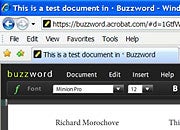
Acrobat.com Buzzword


Buzzword, a Flash-based word processor, was originally developed by Virtual Ubiquity, which Adobe acquired last
September. The program is no Microsoft Word, but it covers the basics
of document creation, including formatting, tables, and image
importing. Its menus are easy to learn and its response time is quick.


Buzzword
shines when you need to share or collaboratively create documents. You
can decide whether to share a document with anyone who knows its URL or
to restrict access to specific Acrobat.com users. User rights--which
the person who submits the document to Acrobat.com assigns--range from
Co-author (full document-editing privileges) to Reviewer (may add
comments only) to Reader (may read only).


Each collaborator's
comments appear in a different color. Buzzword saves the document
automatically as you work. You may revert to an earlier version if you
wish.


You can import and export Buzzword documents to other
popular document formats including Word (.doc, .docx, .xml), .rtf, and
.txt. You can also export to HTML or to PDF formats.


Document Sharing


Share
assigns a unique URL to each document that you upload to your account
(you get 5GB of storage space). To share a document, you enter the
other person's e-mail address, along with an optional message, and
specify whether the file may be viewed publicly or only by the
recipient. The recipient will receive an e-mail with a link to the
document.


You can embed public documents on a Web site or
blog. Readers will see a small thumbnail; they can click this to see a
PDF document or image file in a full-screen preview.


You
can share files, including Office documents, in non-Adobe formats. But
within the browser you can view only Adobe documents; to view all
others, you must run a desktop application that supports the file
format.


PDF Form Sharing and Conversion


Acrobat.com
offers an interesting-sounding PDF form-sharing and tabulation service,
too; but because it requires Acrobat 9 (which wasn't available for
testing prior to the site's launch), I couldn't try it out. However,
Adobe presented a demo of how the feature could be used to distribute a
PDF form (for conference registration, say) by e-mail.


Recipients
would be instructed to complete the form and send it to Acrobat.com,
which would notify the original sender when completed forms arrived and
would tabulate the results in a simple database. The sender could then
view the results, broken down by categories such as which recipients
had registered for which conference session.


This could be a valuable service for a small business that currently has to set up its own server to handle form tabulation.


Acrobat.com
also lets you add comments to PDF documents. Since Acrobat 9 supports
more file types--including video conversion to FLV--you can mark up and
discuss video changes if you have the desktop app.


Web Conferencing


Adobe's ConnectNow Web conferencing service
for individuals and small businesses supports up to three conference
participants. Presumably this rather low user limit is intended as an
inducement for businesses to upgrade to Adobe's Connect Pro.


ConnectNow
lets you can share your computer desktop and collaborate on a document
in real time. You may also take meeting notes in a notes pod, exchange
text chat messages, or communicate via audio. Adobe provides
teleconferencing numbers that use the Vapps voice conferencing service, but


users must pay all toll charges. The conferencing service is similar to those offered by several competitors, including Cisco's WebEx.


Desktop Software Helpful but Not Required


Most
of Acrobat.com's services don't require you to buy Adobe apps. You can
sign up and use the site independently or with the free Adobe Reader 9
once it is released. You will need Acrobat 9 to take advantage of some
of Acrobat.com's good capabilities, however, such as the ability to
create forms and to create and embed video in PDFs for annotation.


After
the beta test period ends (Adobe hasn't specified a date for this), the
company will charge a fee (not yet determined) for a premium
Acrobat.com service that will offer greater storage capacity and
as-yet-unidentified additional capabilities. A basic version of the
service will remain free.


I was particularly impressed by
Acrobat.com's document collaboration capabilities, which are superior
to those offered by other online services, such as Google Docs. If you often need to work with others to create documents, I recommend that you try Adobe's new service.

Form : http://www.pcworld.com/businesscenter/article/146490/first_look_adobes_acrobatcom_document_collaboration_service.html

Windows 7 to Have Touch-screen Interface

Microsoft demonstrated its multitouch interface for its upcoming Windows 7 operating system on Tuesday. The interface provides a touch-screen input for users to interact with their computers.

Multitouch uses Surface technology, introduced last year by Microsoft, which harnesses touch and multitouch capabilities to provide users with a more natural way to interact directly with computing devices. Expect to see the table-like Surface devices in hotels, retail establishments, restaurants and public entertainment venues, Chris Flores, a director at Microsoft working on the Windows Client Communications Team, said in the Windows Vista Team blog on Tuesday.

In a demo to the Wall Street Journal's D: All Things Digital conference, Julie Larson-Green, Microsoft's corporate vice president for Windows experience program management, showed a number of applications that could use the multitouch technology, including photography applications that enable a user to handle photos on the screen more easily. The user can drag and drop snaps, zoom in, and rotate snaps with his fingers. The musically inclined can play with their fingers on an on-screen piano keyboard.

In a blog entry on Tuesday, Flores said that the long-term architectural investments Microsoft introduced in Windows Vista and then refined for Windows Vista SP1 and Windows Server 2008 will carry forward in Windows 7. Contrary to some speculation, Microsoft is not creating a new kernel for Windows 7, he said. One of the design goals for Windows 7 is that it will run on the recommended hardware specified for Windows Vista and that the applications and devices that work with Windows Vista will be compatible with Windows 7, Flores added.

Form : http://www.pcworld.com/

Technorati Tags: , ,