Wednesday, October 1, 2008

Review : Dead Space (Xbox 360)

Price: $59.99 Buy Game

Electronic Arts guarantees a happy Halloween for survival horror
fans with the release of this terrifying, deeply personal thriller.
Developed as a single-player game, Dead Space delivers the
chilling, claustrophobic feeling of being isolated in a dark
environment -- all the while being stalked by some truly horrific
enemies!

Set in the far future, Earth's appetite for natural
resources has become a major motivator for deep space exploration.
Immense, privately-owned and operated mining ships called
"planetcrackers" orbit planets and use sophisticated equipment to carve
out entire city-sized chunks of rock, reducing them to component
elements and raw ore. When communications go dead on-board the USG
Ishimura, a famous planetcracker -- systems engineer Isaac Clarke -- is
sent in to fix the problem. Once on-board the vessel, Isaac discovers
that the crew has unearthed an ancient and malevolent alien presence
far beneath the planet's surface and brought it on-board. Weaponless,
alone and terrified, this lone engineer is burdened with much more than
simple survival -- he must seal the alien horror back into the dark
rock.

Buy Game : Amazon

Removable Vista features for enhanced performance

Vista, the most debated and argued operating system of Microsoft till date. It is loaded with multiple features to attract consumers in this competitive era, but has invited many controversies.

No doubt its market share has started increasing, but many say at the cost of XP. Leaving these petty issues aside, the article will discuss the features that you can disable on your Vista safely to make your computer faster.

Caution: If you are about to disable the unwanted feature right after reading the article, it is advised: Just to be on the safe side, make sure to create a restore point.  By creating restore point, you can quickly return your machine to its present state if you don’t like the changes? To make a restore point, click Start -> Run -> type sysdm.cpl and press Enter. Choose System Protection, Create restore point and now you are on the safer side to follow the tips:

1. Sidebar: Keeping features like analog clock, thumbnail slide-show viewer and RSS news feed that dock in the Windows Sidebar add looks to desktop but they are overheads on performance. If you really are not hooked to these features by any means, you can turn the whole thing off. It will surely give a boost to your speed, especially at boot time.

To remove the Sidebar, right-click Sidebar -> Close Sidebar. Uncheck “Start Sidebar when Windows starts” and then click OK.

2. Aero: Aero interface, one of the major USPs under which Microsoft marketed its Vista and put a lot of visual enhancements for this GUI. Aero sports features like the thumbnails of opened windows while user hover the mouse pointer over the taskbar, as well as the Flip 3-D view by pressing Windows-Tab. Users really like this feature and compares it with Macs GUI.

But, if you really use your PC as performing machine, Aero can be troublesome. To turn it off, right-click the Windows desktop -> Personalize -> Window Color and Appearance. From Window Color and Appearance dialog box, click “Open classic appearance properties for more color options” -> Windows Vista Basic and click OK.

3. Remote Assistance: If you are running Vista Home (Basic or Premium), remote Assistance feature is no use to you. You can easily turn it off and will save certain cycles.

To close this feature, click Start, right-click Computer and select Properties. Click Remote Settings and uncheck “Allow Remote Assistance connections to this computer.”

4. Internet Printing Client:
Vista’s Internet Printing Client is just a performance overhead as almost all of us do not print documents straight from Internet. So disabling it will not hamper your work.


To disable this feature, Start -> Control Panel -> Programs and Features and click “Turn Windows features on or off” link on the left. Windows Features dialog box will get displayed. Expand the Print Services section and uncheck Internet Printing Client.

Click OK and let system to reboot.

5. Windows Meeting Space: Windows Meeting Space feature lets you share files across a network while editing them with a remote colleague. But as per my consensus, most of us do not make use of this feature. If not, we can simply disable this feature also.

To disable this, Start -> Control Panel -> Programs and Features and click “Turn Windows features on or off” link on the left. Windows Features dialog box will get displayed. On this dialogue box, uncheck Windows Meeting Space.

6. Lay off Extras: Vista Ultimate Edition homes numerous features that are pointless and are found exclusively in Vista Ultimate Edition. To close these features, click Start -> All Programs -> Windows Update -> click View available updates and check out all the useless features that are packed in the operating system and you have paid for it.

Apart from these features like User Access Control, Ready Boost, Search Indexing, Offline Files, and Windows Error Reporting Service are also turn off factors; but choices vary from person to person.

From : http://www.itvoir.com/

Things I'll be looking for in the Windows 7 PDC build

Tough-love advice for what Microsoft needs to do in Windows 7 to put behind them the Vista disaster

Now that I know for certain I'll be receiving a pre-beta build of Windows 7 at Microsoft's Professional Developers Conference (PDC) in November, it's time to start thinking about some of the performance-related characteristics I'll be looking for in the new OS.

Overall, Vista has been a major disappointment to me, and even Windows "Workstation" 2008 is a bit more top-heavy than I'd like at times. With Windows 7, I'll be looking for signs that Microsoft is returning to its NT roots, with a less-is-more approach that hearkens back to the early days when the New Technology kernel was still the darling of the IT power-user crowd.

Key focus areas will include:

Memory footprint: Specifically, how expansive the initial idle memory load is vs. Vista's. We already know that Microsoft targeted the so-called next generation of hardware with Vista and that it subsequently overshot that target by a country mile. Here's hoping Microsoft holds the line on working set growth with Windows 7. I don't care if it's as fat as Vista -- just don't make it any fatter.

Kernel thread count: This is a tough one. With XP, the thread count hovered around 57. With Vista, it jumped to more than 90. It's my theory that this, more than any other factor, is why OfficeBench runs roughly 40 percent slower on Vista than XP, even when every conceivable background service and UI goody switched off. There's simply more stuff going on in kernel mode under Vista, and this is why Microsoft needs to keep thread growth in check.

Boot time: Microsoft made all sorts of promises about improved boot times under Vista. What we got instead was an OS that, in many cases, takes twice as long to boot as Windows XP. And it only seems to get worse the longer you use it. Rebooting my laptop today in the Emirates lounge at Dubai airport took me nearly 5 minutes -- 3 minutes just to reach the log-in screen, and another 2 minutes before the disk settled down to a point where I could launch Outlook.

Granted, I have several items loading at log-in, including Daemon Tools, CubeDesktop and Free Download Manager (all members of my top 10 list). But still, 3 minutes to get to a log-in prompt? On a 4GB dual-core notebook with a 7,200-rpm disk? That's simply unacceptable. Microsoft needs to fix this with Windows 7 -- whether by finding ways to improve the Delayed Start mode for services or by further eliminating the myriad dependencies that force the programs that you want to run to load unnecessary extra libraries that having nothing to do with the task at hand.

Disk footprint: With Vista, especially the Ultimate version, Microsoft throws everything but the kitchen sink onto your primary boot disk. In fact, Vista's massive disk footprint is one of the reasons why I hate virtualizing this version of Windows. It's not uncommon to encounter Vista VMs with disk images in the 10GB to 15GB range, making the task of moving them from storage device to storage device that much more difficult. And though I can trim Vista's footprint somewhat using tools like vLite, the approach is technically unsupported. Microsoft needs to provide comparable, supported functionality in Windows 7, perhaps by ripping out some of the useless freebies (Movie Maker, that means you) that clog up my hard disk.

The above are just a few ideas off the top of my head. I'll be paying close attention to the session track at PDC in the hopes of identifying the kinds of architectural changes that spell trouble for Windows 7. Stay tuned!

From : http://weblog.infoworld.com/

How to Use Custom Windows Visual Styles

Customizing the appearance of your Windows installation can be frustrating, because both Windows XP and Vista are limited to the Microsoft's default themes out of the box. However, with a bit of tweaking under the hood, your Windows setup can try on a wider range of looks than come pre-installed. Let's take a look at how to patch your Windows installation to allow customized styles, and a few places to find new and interesting styles online.

Vocabulary and Methods

When talking about the physical appearance of Windows there are two terms that are distinct but often used incorrectly in place of each other. Visual styles, which have the .msstyles file extension, are the files which supply all the information about how the interfaces within Windows should look. The toolbar skin, start button skin, borders, buttons, etc. are all stored in the visual style. Themes contain a visual style along with additional settings such as icons, wallpaper, etc. Later, when browsing for goodies, keep in mind that a theme pack will have further customization than a visual style pack.

Throughout the tutorial you'll need to be able to access the menu within Windows where you can change your themes and visual styles. The following screenshots are from Windows XP but the essential menus are nearly identical in function in Vista, too. For reference, here is how to access both:

XP: Right-click Desktop -> Properties -> Themes Tab (or Appearance Tab for Styles)

Vista: Right-click Desktop - > Personalize -> Themes

First, Back Up Your Current Theme For Safe Keeping And Create A Restore Point


Although you'll most likely find a new style that you really enjoy, on the off chance that you don't, make a backup of your current theme for you to restore later if necessary. Backing up only takes a moment and will allow you put things back exactly as they were before you started customizing, right down to the wallpaper. From within the Themes tab click Save As and name your theme whatever you'd like. Save it in a safe place.

Although the probability of something going catastrophically wrong is slim, it wouldn't hurt to create a system restore point to undo the carnage if need be. Press WINKEY-R to bring up the run dialogue box and type in the following: C:\Windows\System32\restore\rstrui.exe to launch System Restore. Give the restore point an easy to remember name like "Pre-Style Patch", Windows will append the name with the current date.

Second, Patch Your Windows Install

Patching your system for themes allows you to use non-Microsoft approved visual styles. At the very root you're simply replacing the Uxtheme.dll with a modified version that doesn't verify if the style has been signed by Microsoft. It used to be that patching your Windows installation was a hassle, a small one, but a hassle nonetheless. Now both Windows XP and Vista have patching programs available that make it no more hassle than clicking a button and rebooting. There are various programs that can do what the free patches do with some additional functionality thrown in, but they are hardly worth the $20 and up fees they command.

For Windows XP, download the Uxtheme Multi-Patcher. Run the file, click through the prompts and reboot.

For Windows Vista, download VistaGlazz. You must download the VistaGlazz Beta 1.1 if you have installed Vista SP1, version 1.0 will screw up Vista SP1. Run the file, click through the prompts and reboot.

Both patching programs will allow you to reverse the process should anything go wrong by simply running the program again. (However, I've been patching Windows installs for years without a hitch.)

Finally, Download and Install Custom, Third Party Styles

The best way to verify if your patch job has been successful is to browse some of the great repositories of visual styles and select a few to try out. Below are some samples of the most popular styles at DeviantArt.com. Before you begin downloading through, a quick overview of where the files go is in order.

If a style pack is zipped up properly then installing it is as simple as unzipping the files into the C:\Windows\Resources\Themes directory. Check when you open the zip file if the files have nested directories. If you install a visual style or theme and something is amiss, check the following list to ensure the files ended up in the right place:

  • .Theme files must be in the /Themes/ folder, not within any subfolders.
  • .MSStyles files must be in their own sub-folders. If the style name is NewStyle.msstyles, then sub folder in /Themes/ must be /Themes/NewStyle/
  • If your style pack came with a shellstyle.dll, that also goes within it's own subfolder, i.e. /Themes/NewStyle/shell/
  • If you have any problem with loading a style or theme, go back and double check for spelling and capitalization. The names are case sensitive. If a file has a combination of upper and lower case letters, the folder name you place it in must be spelled exactly the same.

Now let's take a look at some popular third-party visual styles in action.

Luna Element 5.0.5 by tornado5


Pristine OS 1.2 by MohsinNaqi

Sentinel Beta - 1 by chaninja

For more visual styles, check out the following resources:

If you have a little bit more time and would like to grab a theme hot off the press, check out the active forums where style designers throw up their newest work:

What's your favorite Windows theme? Tell us about it in the comments—or show off your customized Windows in the Lifehacker Desktop Show and Tell Flickr group.

From : http://lifehacker.com/

Windows 7 to get parallel-processing tweaks

Microsoft has shared bits and pieces of how it is adding new features to its development tools to better support parallel processing. But the next release of Windows client and server also are going to incorporate changes designed to improve their parallel-processing support.

While Microsoft execs and those who’ve managed to get their hands on early builds of Windows 7 have focused largely on user-interface tweaks in Windows 7, there will be some under-the-covers changes, too. Microsoft officials have said on the record that deep-level changes between Windows Vista and Windows 7 will be kept to a minimum, in order to insure application and driver compatibility. Yet Microsoft officials acknowledge that Win32, the core of Windows, is not suited for asynchronous, concurrent computing.

Microsoft is taking the first steps toward remedying this limitation with Windows 7 and its joined-at-the-hip sibling, Windows 7 Server (the product currently known as Windows Server 2008 R2). In the longer term, as I’ve blogged previously, the game plan is to find a way to exorcise Win32 from Windows and replace it with managed code — preferably a set of programming interfaces that are better tailored to handle parallel-processing tasks across many processors. (That’s where the incubation projects codenamed RedHawk, MinSafe and Midori all come in. But don’t expect to see the fruits of any of these projects appear in Windows until Windows 8, at the earliest.)

At the upcoming Microsoft Professional Developers Conference in late October, Microsoft execs are slated to discuss “the key architectural changes Microsoft is making to Windows to enable the efficient execution of parallel software,” according to a session description on the PDC Web site.

I asked Microsoft for more specifics as to what’s changing in Windows 7 with regard to parallel-processing support. A spokeswoman said “Microsoft is not commenting on this level of detail regarding Windows 7 yet.”

I got a few hints about what’s on the drawing board, however, from Craig Mundie, Microsoft’s Chief Research and Strategy Officer.

“Win32 was never designed for highly concurrent, asynchronous processing,” said Mundie during a recent interview I had with him last week at the Emerging Technology Conference in Cambridge, Mass.

“Parallelism requires adjustments at every level of the stack,” Mundie acknowledged. It involves “the repartioning of different tasks to different layers….So look for a rebalancing of roles and runtimes. We need to formalize that in the operating system. Expect thei first pieces in the next generation of Windows.”

As one example of one Windows feature that needs this kind of rebalancing, Mundie cited the user-mode scheduling model. The existing Windows scheduler has “too much overhead,” Mundie said. He noted that Microsoft has introduced a new trial model as part of its Robotics Development Kit runtime. Microsoft’s robotics toolkit includes new concurrency and coordination (CCR) and decentralized software services (DSS) runtimes that are optimized for distributed/multicore computing.

According to Wikipedia, Microsoft already made some initial modifications to the scheduler in Vista:

“Windows NT-based operating systems use a multilevel feedback queue. 32 priority levels are defined, 0 through to 31, with priorities 0 through 15 being “normal” priorities and priorities 16 through 31 being soft realtime priorities, requiring privileges to assign….The scheduler was modified in Windows Vista to use the cycle counter register of modern processors to keep track of exactly how many CPU cycles a thread has executed, rather than just using an interval-timer interrupt routine.”

While Windows today can handle machines with a few cores, it’s not designed to exploit machines with 8, 16 or 32+ cores. I’m doubtful Microsoft will make too many tweaks to the lower-level operating system layers with Windows 7 and Windows Server 2008 R2 in order to keep user disruption to a minimum. But the early seeds designed to make Windows a better parallel/asynchronous-processing platform are being sown, starting in 2009.

Any guesses on what Microsoft might do in the Windows 7/Windows Server 2008 R2 timeframe to improve Windows’ parallel-processing abilities?

From : http://blogs.zdnet.com/

AOL releases AIM for Mac 1.0 beta; world asks, "why?"

AOL hasn't really been a household name on the Mac for quite a while. Since the ISP-cum-media-company's Mac download section began collecting dust long ago, Apple took up the task of building its own (great) AIM client that became a staple for Mac OS X's no-fuss integration of audio and video chat, iChat.

So, who wants to try out a beta of AIM for Mac 1.0?

No joke. Despite the existence of iChat, and even AIM 4.7 for Macintosh that hasn't been touched in over four years, AOL has apparently gone back to the drawing board with AIM for Mac 1.0 beta 1.


The new Leopard-scented client brings customization for things like AIM Expressions, sounds, wallpaper, and emoticons (we know, you've already stopped reading this to go download a copy—jerk). And, of course, it integrates with everyone's favorite e-mail service: AOL Mail. It also features tabbed chatting, as well as wild fonts and text styles as far as the eye can see.

But seriously, though we power users who left AOL in the dust long ago poke fun at it from that perspective, AIM for Mac may very well serve its demographic well. It could very well be that Apple's expanding horde of switchers are feeling lost without some of the features and service integration they were used to on Windows, and though iChat is nice and shiny, it just doesn't have that familiar "You've Got Mail" feel.

From : http://arstechnica.com/

Microsoft: Spatial computing the future

CAMBRIDGE, Mass. -- In perhaps a sign of what's at stake for Microsoft as business and consumers increasingly look to the "cloud" for their computing infrastructure, the software giant sent one of its top guns, research chief Craig Mundie, to last week's EmTech08 conference at MIT to talk about its profile in this paradigm shift.

In a 45-minute presentation that included cameos by two personable robots and demos of Mundie using Microsoft technology to shuttle between his (highly privileged) physical and virtual environments, he argued that the future will run on an amalgam of client and cloud computing. And in that parallel environment, he implied, Microsoft will do just fine.

Mundie, chief of research and long-term strategy at Microsoft, shares with Chief Software Architect Ray Ozzie the technology duties formerly held by founder Bill Gates.

Computing revolutions, Mundie argued, do not happen overnight. Even in the relatively young and rapidly changing discipline of computer science, the technologies that fundamentally change the way we live and work take time to penetrate the marketplace, he said, pointing to the decade or so it took for Windows/Office to really take hold.

Microsoft's global domination of the desktop, however, was not about operating systems but the superiority of its applications, Mundie asserted, still apparently fighting the monopoly charges. The success of Windows came on the back of Office, he said, on spreadsheets and word processing. Likewise, Internet adoption was driven primarily by two applications, email clients and the Web browser. And the future of computing also will not be determined by an underlying platform -- the Microsoft OS or a Web OS -- but by killer applications.

The pertinent question then, Mundie said, is what is the next killer app?

Spatial computing: Humanistic, adaptive, immersive

The next evolution will be all about computerizing the physical environment, or spatial computing, Mundie said. With spatial computing, the user interface covers many more surfaces than it does now and is more "context centered." The interface reacts to and is imbued with the environments around us, Mundie said.

One manifestation of spatial computing will be brainy robots. Mundie showed a demo video of a prototype robot receptionist that will be tested at Microsoft to handle bookings for the shuttle service that ferries employees from one building to another on the company's vast campus. Shuttle demand is so high that the company's human receptionists "waste a lot of time" booking appointments. The receptionist robot, which uses 40% of her eight-core processor even when idle, senses when people enter her space (yes, the robot is fashioned as a woman) and inquires whether they need a ride. Equipped with natural language processing and array microphones, she can "see" and "hear" subtle differences and change her pitch accordingly. So, for example, a man in a suit and tie is asked if he is there to see someone on the robot's assumption that his spiffy attire makes it likely he is a visitor, whereas two casually dressed men are just asked if they need to book a shuttle.

But software must move beyond robotics, Mundie said, if we are to realize the potential that a combination of local and remote computing offers us. The next computing evolution, he said, will be defined by multi-core processing and parallel programming; it will be context-aware, model-based, personalized, humanistic, adaptive, immersive, 3-D and it will use speech, vision and gestures. The new "spatial Web" will interact with the user's physical world to further blur distinctions between the physical and virtual worlds to provide an enhanced reality.

Photosynth, smart Surface table and buying Eskimo art

Mundie demonstrated this world using Microsoft technology such as its Surface table, which can recognize physical objects, and remarkable Photosynth 3-D software to fashion a "First Life" reality where users shuttle between virtual and physical environments to do all sorts of things.

In a demo that seemed a tad out of touch given the U.S. financial crisis and potential failure of the global economy, Mundie regaled the audience with a gee-whiz exercise involving tracking down a piece of Eskimo art he had admired in a "physical" magazine in an airport newsstand. The journey progressed from snapping a photo of the magazine cover with his smartphone, placing the smartphone on a hotel surface technology table to retrieve an online copy of the magazine and from there taking a virtual tour of the Seattle gallery where the piece was on display. The audience watched as Mundie, a collector of Pacific Northwest art, conferred virtually with wife Marie on the artwork's merits, spinning the piece virtually to see it from all angles and even chatting online with the artist, before deciding to make arrangements (including a lunch reservation and taxi) to view the coveted item in person.

Applications that prove effective in this new era of ubiquitous computing will also have to change. They will be loosely coupled, asynchronous, concurrent, decentralized and resilient -- attributes "that are almost the inverse" of the attributes that define applications today, he said.

Mundie's vision of computing future as a rich interface between representation and reality was brought down to earth by a question from an audience member from Phoenix asking about -- what else? -- migrating to Windows Vista.

He wanted to know, given Mundie's vision of rich user interfaces, when we can expect Microsoft to make its programs aware of the gaps in user knowledge. Having just migrated to the Vista operating system, the audience member discovered after several weeks that his wife didn't know how to turn off the program and had been resorting to unplugging the computer to shut down -- that's how unintuitive the system was. And lest anyone think he was being sexist, he raised his own persistent inability to correctly use then and than and wondered why a company that can program a robot can't figure out how to accommodate the frailties of its human customers.

"That's a good question. It is one we have struggled with on and off for a long, long time," Mundie conceded, referring back to a presentation slide showing Microsoft's array of products over its lifetime.

"There is always a tension between advancing [systems] and maintaining absolute compatibility with the past. We have tried a lot of different ways at times to find a balance of those things," Mundie said. In the case of Microsoft's decision to change the model of the Office user interface by switching to what it calls "the ribbon," the aim was to accommodate new users of the product.

"There is only one reason to change to the ribbon. It was a way to more naturally expose the underlying capabilities of the product to people who had only limited understanding of the facilities of the prior generation [of Office]," he said.

"I think this aspect of discoverability is a big part of better user interface design. Your wife should have easily been able to figure out how to discover how to turn it off. And we're not there yet."

From : http://searchcio.techtarget.com/

iPhone App Review: eWallet for the iPhone

eWallet, from Ilium Software, is now available in the iTunes App Store for $4.99 with a desktop version for Mac OSX coming soon, according to Ilium.

Ilium Software offers their popular eWallet app for Palm, Windows Mobile Pro and Windows Mobile Smartphone. Now, you can have this useful app on your iPhone or iPod Touch.

How does eWallet for the iPhone measure up? Read on for the full review!

Credit cards, bank accounts, memberships, passwords, PIN numbers, health information — I’m a bit ashamed to admit that this is the kind of information I used to store unsecured in Memos on my Palm or, more recently, as a Note on my iPhone. Now, I’ve stepped up my game and am trying eWallet.

First Impressions

eWallet for the iPhone is an easy and convenient way to store your ridiculous number of passwords, email accounts, PIN numbers, credit card numbers, security questions, and more. Rather than risk my sensitive unsecured information falling in the wrong hands, I can instead create virtual cards with eWallet and store them securely on my iPhone.

The app is fairly easy to use, complete with Get Started for help, Sample Cards, and more samples to choose from. The interface is simple to use and it’s great to make virtual cards to store all my personal data. 

Filling Your Wallet

With eWallet, you first must create a new “wallet” for storing your data. You can name it whatever you wish. Once a wallet is created, you assign a password to protect the data you are about to store in your wallet. Create different wallets for different categories of data, if you wish. For example, create a Credit Card wallet for all your credit cards, a Bank Accounts wallet for your bank accounts, etc. For security, eWallet provides 256-bit AES encryption to ensure your data does not fall into the wrong hands, even if your iPhone does.

After assigning a password, you can begin making virtual cards. For example, if you want to store a credit card in your wallet, you can create a virtual card complete with all your credit card data: credit card number, expiration dates, name as it appears on your card, PIN number, verification number, contact phone number, security questions, and more. After creation, you can edit your card information by tapping the “gear” icon in the lower left corner of the screen.

eWallet allows for quite a bit of customization for your virtual cards. There are several different formats to choose from, from credit cards to your driver’s license, from health numbers to insurance policies. Customization doesn’t end with the type of card or data you can input. eWallet gives you other options, like selecting the color for your card, the type of icon displayed on the card face, gloss effects and rounded corners. You can even select a photo from your iPhone as the background.

Whatever your data may be, it’s very likely that eWallet has a way for you to store it securely on your iPhone. If you are a Windows user, good news — you can download a desktop version so you can backup and sync your eWallet wallets to your PC. If you are a Mac user, like me, you have to wait a bit longer for a Mac desktop version. Ilium informed me that it’s coming soon, so I’m looking forward to adding that feature when it’s available.

Final Thoughts

I like what Ilium Software has done here with eWallet for the iPhone. It’s a must-have app for me and is FAR better than keeping my data in Notes. The only negative for me is the lack of a desktop version for my Mac, so I’m anxious for that to be available. Otherwise, eWallet is an excellent way to store your personal data securely while providing easy and convenient access when you need the information. At only $4.99, it’s an easy choice.

Pros

  • Simple interface and easy to use
  • 256-bit AES encryption security
  • Create several wallets
  • Customizable cards for all types of data

Cons

  • No Mac desktop for syncing and backup
Thank For Review : http://www.theiphoneblog.com/

AOL Dusts Off AIM for Mac with a Visual Refresh and a Beta Tag

This week’s release of AIM for Mac 1.0 Beta might strike some as strange, given the fact that it’s 2008 and Mac OS X users have had years to grow accustomed to things like Apple’s iChat client and third-party creations like Adium, both of which have support for the protocol. But AOL insists that it is “one of the most requested applications from our users.” Because AIM for iPhone has been a popular download, apparently.

To be frank, there isn’t anything thoroughly impressive about this release - at least not in the way of outstanding features. While the company offers a Windows-friendly client that provides things like VoIP and video chat, as with many other messaging services on the Web, including Skype, users of AIM for Mac 1.0 Beta will have to remain satisfied with file transfers, AIM groups and AIM Blast groups and connections to AOL mailboxes and so forth (Just to note, personal experience has routinely shown the inability to successfully transfer files via AIM.).

If nothing else, AIM for Mac 1.0 Beta can simply be thought of as an option for those Mac users searching for AOL branding and find its heavily aged and underdeveloped predecessor, AIM 4.7 for Macintosh, too old and too tired and not thematically sufficient to run with other Tiger- and Leopard-level applications with at least some semblance of visual congruity.

From : http://mashable.com/

WindowShade X Revisited

Over the many years we’ve been writing about great low-cost software, one of the most popular products—with both readers and Gems writers—has been Unsanity’s WindowShade X. This “haxie,” as Unsanity calls its system-enhancement utilities, brings back one of the favorite features of Mac OS 9: windowshade-style window minimizing. With WindowShade X installed, double-clicking the title bar of a window no longer minimizes the window to the Dock; instead, the entire window “rolls up”—complete with audio effect—into the title bar, which remains in place.

This is a great way to keep windows visible and accessible without blocking your view of other onscreen items. It’s also a handy way to quickly view something behind a window: double-click for a better view, and then double-click again to restore the window. Although Exposé, introduced in Mac OS X 10.3 (Panther), reduced the utility of this windowshade feature somewhat, it still has its advantages.

Unfortunately, Mac OS X 10.5 (Leopard) broke WindowShade X, forcing fans to muddle through without it. Granted, most people got by just fine. But as someone who started “windowshading” when the feature first debuted in 1997 as part of Mac OS 8, and used WindowShade in OS X for years, by the time Leopard was released I’d been using this functionality for over a decade! That’s some serious muscle memory to overcome, and, in fact, as recently as a couple weeks ago I still found myself wanting to “roll up” windows.

Why only until a couple weeks ago? Because that’s when Unsanity finally released WindowShade X 4.2, the first official release that works with Leopard. Like previous versions, version 4.2 offers a standard windowshade mode, as well as three other “minimize” features: transparency, which makes a window translucent so you can see what’s behind it; minimize-in-place, which shrinks a window down to the size of a large icon (that you can move around); and hiding, which hides the application to which the window belongs.

But you don’t have to choose just one of these modes; via the WindowShade X preferences pane, you can assign a different action to each mode, as well as change the action required to get the standard minimize-to-Dock behavior. (You can choose from among several different actions.) For example, on my Macs, double-clicking a window’s title bar windowshades it, while control-double-clicking makes the window translucent. You’re also supposed to be able to create your own actions and keyboard shortcuts; unfortunately, I haven’t gotten this feature to work properly.

You can also customize many of these effects. For example, you can choose the translucency of “transparent” windows; choose the size and behavior of minimized-in-place windows; and set up application-specific preferences so, for example, double-clicking the menu bar of a window does one thing in the Finder, another in your favorite Web browser, and another in Photoshop.

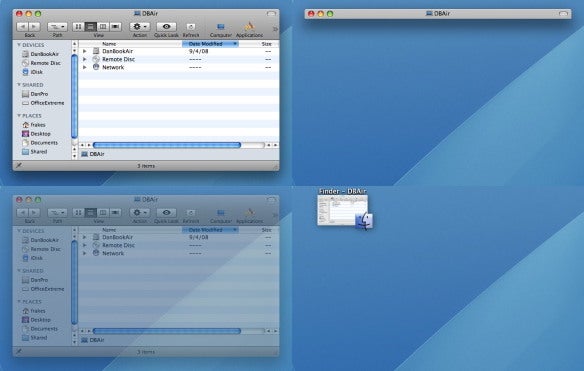
A standard window (upper-left) and the same window with WindowShade X's effects applied: standard windowshade (upper-right), transparency (lower-left), and minimize-in-place (lower-right).

In addition to adding Leopard compatibility, WindowShade X 4.2 works better with iTunes and fixes a number of bugs. It also removes a feature of older versions of WindowShade, custom shadow settings, that never worked reliably.

Besides the problem I noted above about custom actions, WindowShade X’s minimize-in-place option doesn’t currently work with Mac OS X’s Spaces feature. I’d also like to be able to adjust the volume of the "swoosh" sound you hear when minimizing a window. But perhaps the biggest issue for some OS X users is how WindowShade X works its magic: via Unsanity’s Application Enhancer, now at a Leopard-compatible version 2.5. What is Application Enhancer? As Unsanity explains it:

It is a combination of a Framework and a system daemon. Application Enhancer performs its task by loading plugins (Application Enhancer modules) containing executable code into the running applications. Once loaded, the APE module performs the needed modifications (such as redefining the minimize window action, or customizing the standard Apple menu) on the launched application memory space, never touching any files on disk, utilizing set of functions defined in the Application Enhancer framework. To help the APE modules to be loaded into newly launched applications, the Application Enhancer daemon (aped) is used.

In other words, it’s a system hack that affects all running applications (although you can manually exclude certain applications from being modified by Application Enhancer and, thus, Application Enhancer-based system utilities). Some Mac users refuse to use such hacks on their systems because of concerns about instability and other potential issues; if you’re one of these people, WindowShade X isn’t for you. That said, I ran WindowShade X for years on my pre-Leopard Macs without problems, and I've been using version 4.2 for the past couple weeks without incident.

(One related note: Unsanity’s instructions say you need only log out and then back in after installing WindowShade X; however, I had to actually restart my Mac for WindowShade X to take effect.)

Finally, a note about WindowShade X’s price. Unsanity provides version 4.2 free to anyone who’s ever purchased an older version. However, the company requests that those who’ve been using it for many years consider paying a $7 “voluntary upgrade fee.” As the name implies, you aren’t required to pay it, but if you’ve been using WindowShade X across multiple versions of OS X, it’s a way of saying “Thanks for all the free upgrades; here’s some cash to help with future development.”

WindowShade X 4.2 requires Mac OS X 10.4 or later.

From : http://www.macworld.com/

WiMAX option for MacBook and MacBook Pros

Oh, glorious FCC! Bringer of news on upcoming products.  Thank you for the gift we've just received....Even though Intel tried to keep it quiet from us (PDF).

Over the weekend, the FCC leaked out a bit of exciting news.  Intel is soon releasing the 5350 WiFi/WiMAX combo card that fits into Mini PCI Express card slots (pictured below).

To Mac hardware hackers, this mini PCI slot card might look very familiar.  It has the same form factor as the Wifi cards in McBooks and MacBook Pros (below). 

Does this mean you will be able to swap out your Wifi Card for a combo WiFi-WiMAX card?   Yes! 

Will it work?  I'm not entirely sure yet.  As far as I can tell, there are no Mac drivers for this hardware - although Windows drivers exist.  Obviously as Intel standard equipment, it is likely that Apple will jump on this bandwagon in upcoming MacBook and MacBook Pro (Air?) hardware revisions - perhaps we will even see these drivers in upcoming Leopard releases?

Also, there is the antenna port.  Will that third antenna port need a dedicated WiMAX optimized antenna?  Need is a strong word.  Most likely, MacBook users will be able to use one of the built in WiFi antennas for acceptable performance.  This, of course, is pure speculation.

On the deployment side, it would help if Sprint/Clearwire would roll this WiMAX thing out to more cities already...Baby steps I guess.  Internationally, WiMAX is also set to start seeing more deployment.

For more interesting info, check out the WiMAX card's User Guide(PDF).

Part of this PDF includes the information that Intel is also supposed to put up a website on where to find WiMAX (currently a dead link):

To  check what networks are available, visit this website: www.intel.com/go/getWiMAX

From : http://blogs.computerworld.com/

Apple condemns FileVaulters to seventh circle of Safari hell

A Reg journo was bemused this morning when he rebooted his Mac and the machine decided that Safari - not Opera - should be his default web browser.

Apple has a habit of forcing its second rate browser down the gullets of unsuspecting web surfers. But this seemed beyond the pale.

The culprit, our journo discovered, was Apple's FileVault, a file encryption tool bundled with the Mac OS. When FileVault was switched on, the OS made Safari the default browser every time the machine rebooted. When it was switched off, all was fine.

As it turns out, this is not a new issue. Over at the Apple support forums, a Mac user first complained about a similar problem as early as February. And according to other posters, the issue has been around since at least the release of Leopard (Mac OS X, version 10.5.0) in October 2007.

"I, too, am using FileVault and have this issue, ever since 10.5.1 (i never had 10.5.0). 10.5.3 does not fix this issue," says one poster. "It also has affected other applications. Adium (instant messager [sic]) always asks me if it should be the default IM client."

Nine other posters also point to FileVault as the perpetrator, and the last of them weighed in just four days ago. Some are even claiming that the bug dates back to FileVault's debut in 2003.

So, the problem has been around for at least a year - perhaps more - and Apple has yet to weigh in with a fix. Nonetheless, the lengthy support thread carries a tag that reads "This question has been answered."

"Whoever marked this thread as answered must be blind," says one poster. "I have the same issue and it's kinda ridiculous that since 2003 a) no fix has been released and b) no one from Apple has considered himself/herself with this problem. great..feels like having a windows machine."

From : http://www.theregister.co.uk/

Apple to unleash first builds of Snow Leopard since WWDC

Apple is quietly preparing to equip some of its developers with the first pre-release copies of Mac OS X 10.6 Snow Leopard since an inaugural build was issued to attendees during its annual developers conference in June, AppleInsider has learned.

People familiar with the company's plans suggest that distribution will be extremely limited, as the software is believed to have undergone a number of enhancements since its earlier appearance. Members of the vast Apple Developer Connection network are among those who are unlikely to see the new builds, they say, at least during the initial phase.

Unlike major Mac OS X releases of years past, Mac OS X 10.6 Snow Leopard will mark a temporary departure from user-oriented feature implementations in favor of a focus on performance and stability. This will include a tremendous amount of effort towards laying a foundation that will support the future directions of the microprocessor and graphics industries for years to come.

With the chipmakers indicating that the future of PC performance will largely be driven by an increase in the number of cores per processor, rather than raw clock speed, Snow Leopard will include a feature called Grand Central, which will allow developers to easily author applications that take advantage of 2-, 4-, 8- and even higher-core Macs without extensive knowledge of multi-threading and load balancing.

Similarly, a feature called Open Computing Language (or OpenCL), will let any application tap into the vast gigaflops of GPU computing power previously available only to graphics applications. Snow Leopard will also raise the software limit on system memory up to a theoretical 16TB of RAM and introduce a new version of QuickTime optimized for modern audio and video formats.

Word that Apple is set to expand testing of Snow Leopard comes just weeks before the company is expected to return focus to its Mac business with the introduction of radically redesigned MacBooks and MacBook Pros. Mac OS X 10.5.6, the next update to its existing Mac OS X 10.5 Leopard operating system, is also expected to surface around that time, and has been rumored to include native Blu-ray support.

Since its pre-release debut in June, AppleInsider has covered a number of smaller discoveries surrounding Snow Leopard, such icon support of QuickLook, dramatically smaller application packages, and the system's new multi-touch framework and text processing features.

We've also recently kicked off our Road to Snow Leopard series with a four-part segment covering upcoming improvements to 64-bit support, and offering readers a look at how those under-the-hood enhancements will benefit every day use:

Road to Mac OS X 10.6 Snow Leopard: 64-bits

Road to Mac OS X 10.6 Snow Leopard: 64-Bits

Road to Mac OS X 10.6 Snow Leopard: 64-bits, Santa Rosa, and more

Road to Mac OS X 10.6 Snow Leopard: twice the RAM, half the price, 64-bits

Road to Mac OS X 10.6 Snow Leopard: the future of 64-bit apps

From : http://www.appleinsider.com/

Windows Media Center TV Pack 2008: The Unofficial User's Guide

Everything you need to know to install, tune, and get the most out of the new Windows Media Center TV Pack.

What's the neatest feature in Microsoft's Windows Vista operating system? The answer is simple: Windows Media Center. And the good news is that the media-centric interface just got its biggest overhaul since Vista launched. The Windows Media Center TV Pack 2008 software lets PCs receive high-definition cable content without requiring specially certified systems (though CableCARDs are required for premium, encrypted content). That means high-def cable for the rest of us!

The TV Pack was released on July 16, replacing the existing Media Center code in Vista with a new version—6.1.1000.18273. Here's the bad news (or, maybe, not-so-great news): It's an OEM-only upgrade, so you can't download it through Windows Update or from Microsoft.com. It's intended for release to manufacturers only, and there's no guarantee they'll offer it as an upgrade to current users. In fact, there are only a handful of places on Microsoft's collection of Web sites that mention it at all; visit Media Center's main digs on the corporate portal and you can't even tell that there's been an upgrade. With even less fanfare (not so much as a press release), the company officially launched TV Pack at this year's CEDIA (Custom Electronic Design & Installation Association) show in September, where manufacturers such as Life|ware and Niveus Media released computers with the new code.

Of course, enthusiasts across the Web have found places to download TV Pack (including the chat boards at Engadget HD and Microsoft-owned The Green Button), neither of which have been asked to remove the links. And in spite of Microsoft's caution that TV Pack should be installed only on a clean copy of Windows Vista SP1, many users are reporting success with the new software. Why install verboten code? TV Pack includes important new features, such as support for new television formats (particularly outside of the U.S.), a polished and enhanced TV guide, heterogeneous tuner support (Engadget's Ben Drawbaugh accurately describes it as "far cooler than it sounds"), and more. First, we'll examine the new features in greater depth. Then we'll walk you through how to use them and how to make the most from Windows Media Center TV Pack 2008.

From : http://www.pcmag.com/